Skip to main contentIntroduction
Developer Mode is a workspace-level setting in Copera designed to make it easier for developers to copy resource IDs directly from Copera. These IDs are often needed when building integrations using the Public API.
This mode exposes contextual actions throughout the interface so developers can quickly retrieve IDs without inspecting the network or using debugging tools.
Purpose
Developer Mode exists to streamline integration development by enabling fast access to resource identifiers. It provides an efficient way to copy IDs that are otherwise hidden in the standard user interface.
This feature is exclusively for copying resource IDs.
How to Enable Developer Mode
Developer Mode can be enabled in the workspace config on the top left corner:
Workspace Settings → Account → Advanced → Developer Mode
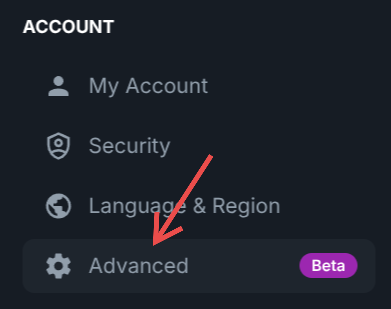 A new Advanced section is available inside the Workspace settings. Once activated, additional UI elements become available for copying IDs.
Where IDs Can Be Copied
When Developer Mode is active, users can copy IDs from multiple locations across the workspace interface.
Available Resource IDs
Users can copy IDs for:
-
Channels (via right-click on the channel item in the left side-bar)
-
Boards (via right‑click on a board item in the left side-bar)
-
Tables (via right‑click on the table item in the left side-bar or through the three‑dot menu in tables)

-
Columns (via right‑click on a column)

-
Column options for column types such as:
- multiselect
- select
- status
For column options, IDs can be copied directly inside the cell value dropdown by right‑clicking on the option.
Summary
- Developer Mode enables copying resource IDs directly in Copera.
- ID copying is available for channels, boards, tables, columns, and certain column options.
- The feature is enabled in Workspace → Settings → Advanced → Developer Mode.
- Developer Mode is designed to support integration development.

